GUIDED ACCESS GAME SETUP / NOVEMBER 2, 2026
How should two players use Guided Access for a game on one iPhone?
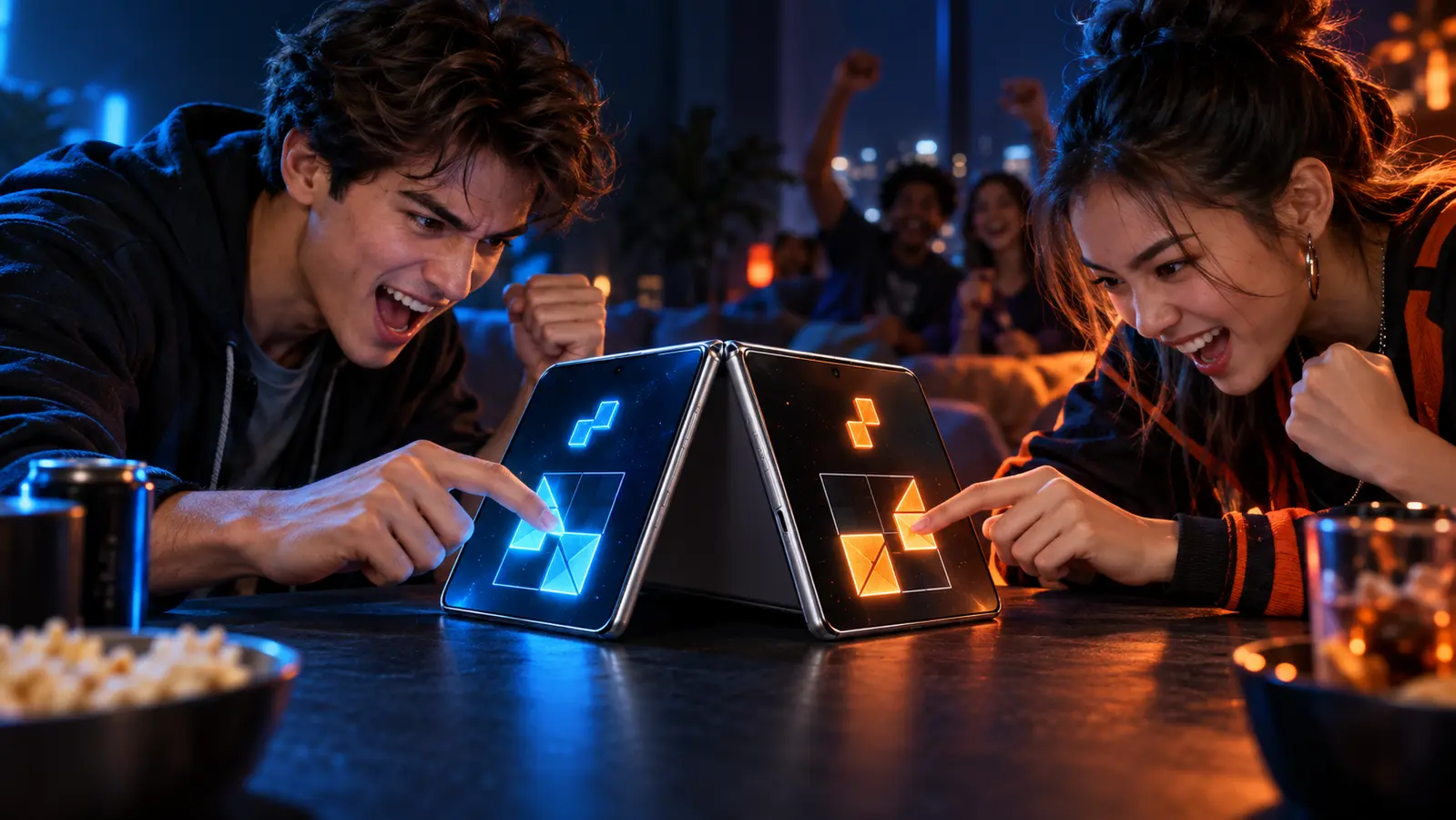
Turn on Guided Access before a shared match when you want to keep the iPhone in one game and reduce accidental exits. Keep Touch on, disable only controls or screen areas the game does not need, test every player input in an unscored round, and make sure the phone owner knows the private exit. Guided Access controls the device. It does not create a two-player mode or prove that a game is fair.
By the DuoDragonz Editorial Team · Published November 2, 2026
The short answer: lock the app, not the players' controls
Apple's current Guided Access guidesays the feature temporarily restricts iPhone to one app. The phone owner can set a private exit, limit hardware buttons, control motion, keep or block the software keyboard, set a time limit, and draw around screen areas that should not respond to touch.
For a two-player game, the useful goal is narrow: keep both people inside the intended app without breaking either player's normal inputs. Guided Access does not confirm simultaneous touch, assign controls to players, remove in-game purchases, fix an unfair layout, or preserve a score after a crash. The game still owns all of that behavior.
Choose each session control by what the game needs
| Guided Access control | Possible two-player use | What to verify first |
|---|---|---|
| Side Button | Reduce accidental locking or leaving during a round | The owner can still pause and exit with the shortcut and authentication |
| Volume Buttons | Keep one agreed sound level for both players | Important cues remain visible if audio cannot be changed |
| Motion | Stop unwanted rotation or motion responses | The game does not use tilting, shaking, or rotation |
| Software Keyboards | Prevent an unnecessary keyboard from covering the board | The mode does not require names, answers, chat, or text entry |
| Touch | Leave it on for normal interactive play | Both player zones, menus, pause controls, and rematch work |
| Disabled screen areas | Block a non-game corner or control that causes accidental taps | The mask never covers either player's controls or required menus |
| Time Limit | Create a device-use boundary for the whole session | Players understand that it is not the game score or round timer |
Keep Touch on unless the game is not interactive
Apple's Guided Access support articleexplains that turning Touch off makes the screen ignore all touches. That can fit a video, demonstration, or spectator display, but it normally defeats a two-player touch game. Leave Touch on and use a small disabled area only when there is a clear, nonessential target that causes accidental taps.
A mask is not automatically fair. One player may sit closer to a disabled corner, a game may move buttons between screens, and an ad, dialog, or rematch control can appear in a different place. Test the exact mode and every normal action after the mask is applied. Remove it if either player loses a required control.
Use one owner exit and one shared rule
Before play, the phone owner should set and privately verify the Guided Access passcode or biometric exit. Apple documents the Accessibility Shortcut and button shortcut used to open Guided Access controls. Players should agree that only the owner pauses or ends the session, except when an urgent situation requires immediate access to the phone.
Keep device restrictions separate from tournament rules. Guided Access can hold the app in place, but the one-phone tournament guide should still own scoring, side swaps, restarts, and tie-breakers. Use the interruption recovery guide when a call, lock, app change, or uncertain recovered state affects a round.
Run the two-minute owner check
- Verify the exit first. The owner confirms the private passcode or biometric exit before lending the phone or starting a scored match.
- Open the exact game mode. Start from the intended one-device, two-player screen, not the app's home page.
- Keep Touch on. If the mode needs taps, drags, or held input, turning Touch off will prevent gameplay.
- Protect only nonessential areas. Draw a small mask only where it cannot cover either player's controls, score, pause menu, or rematch path.
- Choose buttons and motion together. Decide whether volume, rotation, shaking, or the software keyboard is part of the mode before disabling it.
- Play one unscored round. Both players use every normal control, hold and move inputs at the same time if required, open the expected menu, and start a rematch.
- Test the time boundary. If a time limit is used, both players know what will appear when it expires and how the owner will end or resume the session.
- Keep the safety exit available. End Guided Access whenever someone needs Emergency Services, an emergency call, or access to another essential app.
iPhone Duo adds Pose Changes and Display Changes
Apple's current iPhone Duo instructions list two additional Guided Access controls. Pose Changes can keep buttons in the same place when the phone is folded, opened, or rotated. Display Changes can keep the session on the inner or outer display where it began. These are confirmed device controls, not proof that a game has a fold-aware layout or two-player support.
A stable pose can help a shared match, but freezing a layout can also conflict with a game that expects to adapt when the device changes. That is an inference from the controls, not a DuoDragonz hardware test. Use one unscored round in the intended pose and check control positions, readable text, player zones, the shared score, and the rematch screen before keeping either restriction. The iPhone Duo optimization checklist explains what public evidence can support a separate compatibility or optimization claim.
Know the current emergency limitation
Apple currently warns that Crash Detection and Emergency Services are unavailable while Guided Access is active. End Guided Access to make an emergency call or use those services. Do not use a game restriction when anyone may need immediate access to emergency features, medical information, communications, or another essential app.
How this applies to Game 001
DuoDragonz is developing Game 001, working title Puzzle Rush, as a face-to-face same-device puzzle race. Guided Access behavior, player-zone masks, session time limits, pose restrictions, display restrictions, and iPhone Duo compatibility have not been announced or verified for the game.
Browse the iPhone Duo games guide, see all DuoDragonz game projects, check the verified release status, or join early access for evidence-backed updates. Signing up does not promise a release date, invitation, Guided Access behavior, or hardware support.
Frequently asked questions
Does Guided Access stop players from leaving an iPhone game?
Guided Access temporarily restricts iPhone to one app. The phone owner should still verify the private passcode or biometric exit before play and end the session when access to another app or an emergency call is needed.
Should Touch be turned off for a two-player game?
Usually no. Turning Touch off makes the entire screen ignore touches, which prevents normal gameplay. Keep Touch on for an interactive game and, if useful, disable only specific screen areas that neither player needs.
Can Guided Access make a game support two players?
No. Guided Access controls access to the device and the current app. The game itself still needs a documented two-player mode, working controls, fair player zones, and a clear result.
What do Pose Changes and Display Changes do on iPhone Duo?
Apple says Pose Changes can keep buttons in the same place when iPhone Duo is folded, opened, or rotated, while Display Changes can keep the session on the display where it started. These session controls do not prove that a game is optimized for iPhone Duo.
Can I make an emergency call during Guided Access?
Apple currently warns that Emergency Services and Crash Detection are unavailable while Guided Access is active. End Guided Access before making an emergency call or relying on Crash Detection.
Does Game 001 support Guided Access or iPhone Duo?
DuoDragonz has not announced or verified Guided Access behavior or iPhone Duo compatibility for Game 001. Those claims require evidence from a real build.
Primary sources
- Apple iPhone User Guide: Lock iPhone to one app with Guided Access
- Apple Support: Use Guided Access on iPhone or iPad
- Apple Support: About the Accessibility Shortcut
Editorial note: This guide interprets current Apple documentation and supplies an original two-player setup check. It is not a hands-on iPhone, iPhone Duo, game, accessibility, safety, or Game 001 test. It does not claim multiplayer support, a finished control system, emergency availability, rankings, or hardware compatibility.